
Category: Getting Started · Audience: HubSpot admin · Reading time: about 4 minutes
Installing EventEngine takes about 10 minutes. You connect it to your HubSpot portal, approve the access it needs, and run through a short setup. EventEngine handles the rest, building everything it needs inside HubSpot for you. This guide is written for the person doing the install, usually a HubSpot admin.
Before you start
- A HubSpot Professional account, with admin access so you can approve the app's permissions. EventEngine needs Professional-level workflows and HubDB, so it does not run on free or Starter. You do not need Enterprise.
- Your billing details to hand. EventEngine starts with a 14 day free trial, then moves to a paid plan.
- A decision on who your event emails come from. You set the sender name during setup, so it helps to know it in advance.
Install EventEngine, step by step
-
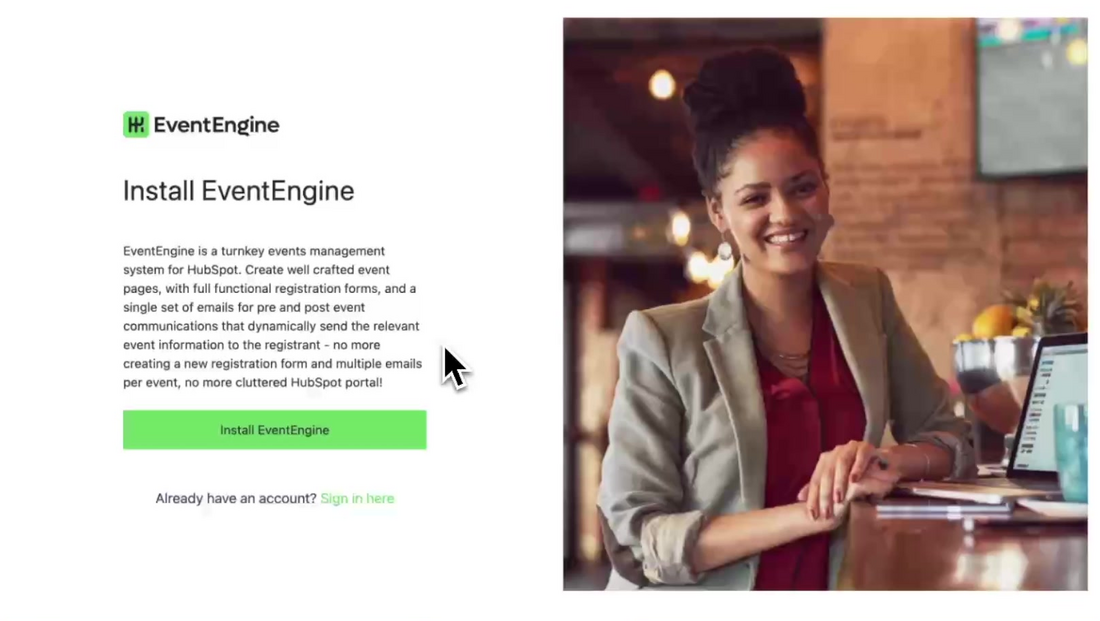
Start the install. Go to the EventEngine install page, either from the HubSpot Marketplace listing or from eventenginepro.com, and click Install EventEngine. Already set up an account? Choose Sign in instead.
-
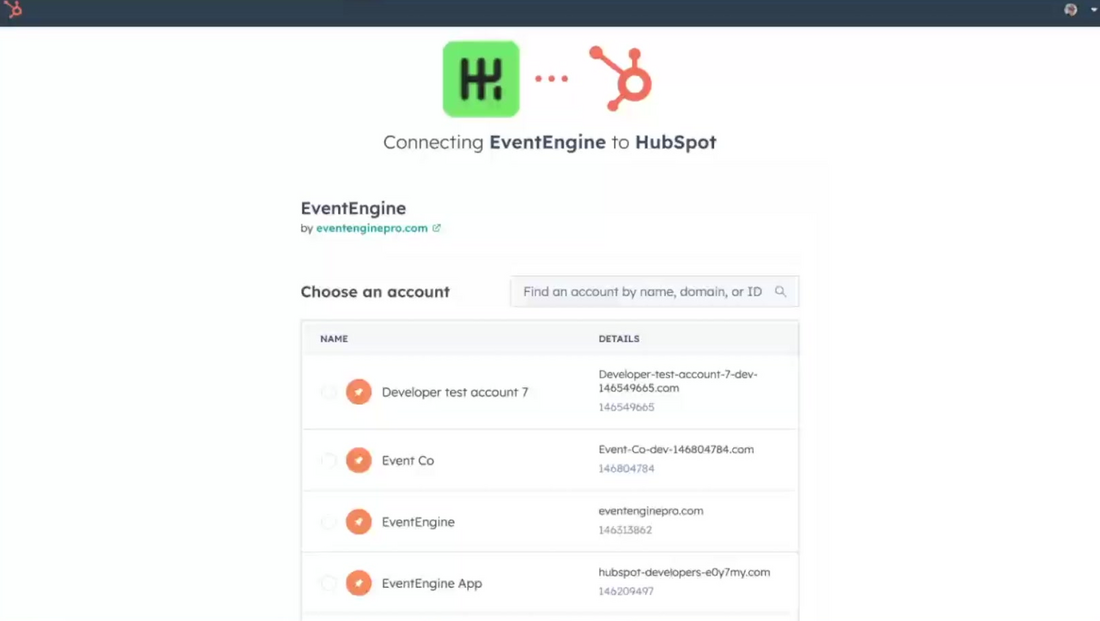
Choose your HubSpot account. EventEngine asks which HubSpot account to connect. Pick the portal you want to run your events from. If you are logged into more than one, HubSpot lets you choose.
-
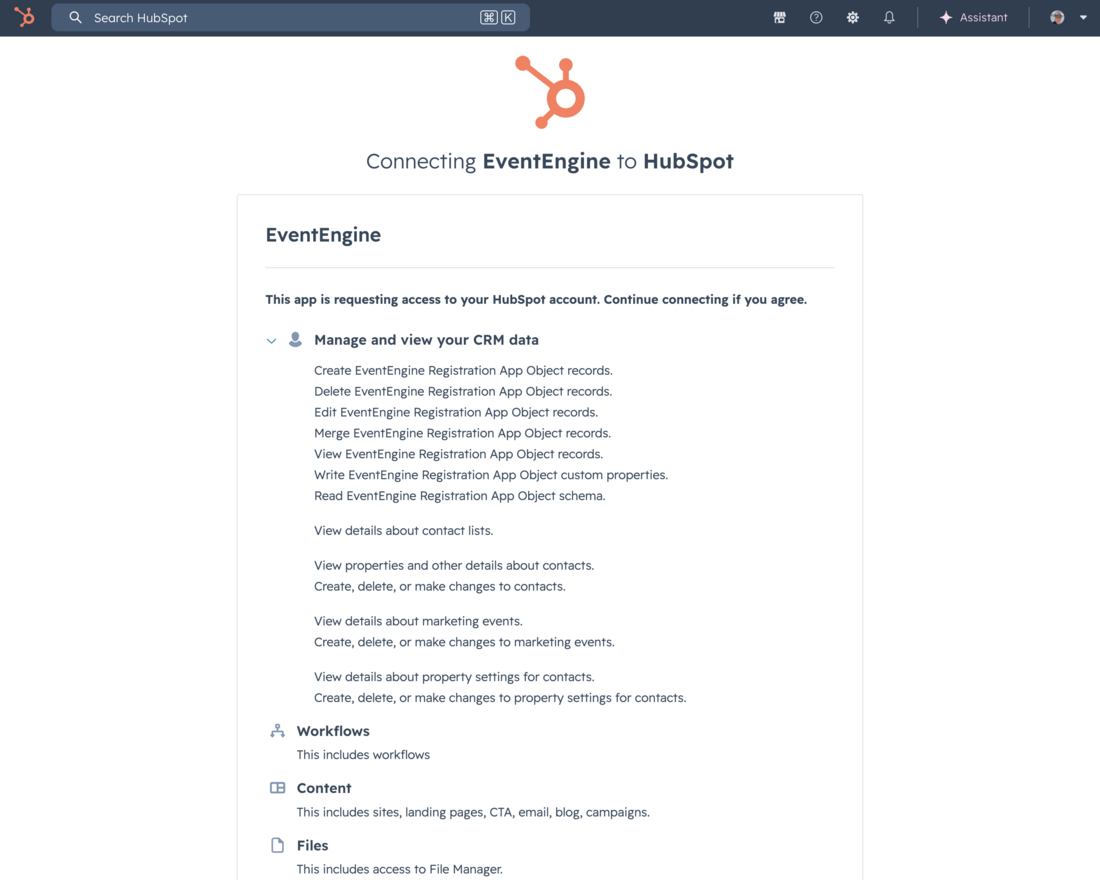
Grant the permissions. HubSpot shows the access EventEngine needs. This screen is standard for any connected app, and EventEngine needs each item to do its job. Review the list, then click Connect app.
The access covers: the EventEngine Registration App Object (its records, custom properties and schema); contacts and contact lists; contact property settings; marketing events; Workflows; Content (sites, landing pages, CTA, email, blog, campaigns); Files; Forms; HubDB; and basic account information.
Why each permission?
The EventEngine Registration App Object and marketing events hold your event and registration data. HubDB and Content render your event pages. Forms power registration and Content covers the confirmation emails. Workflows run the automation behind reminders and follow-ups. Because registrations live in EventEngine's own App Object, not a HubSpot customer custom object, you do not need Enterprise.
-
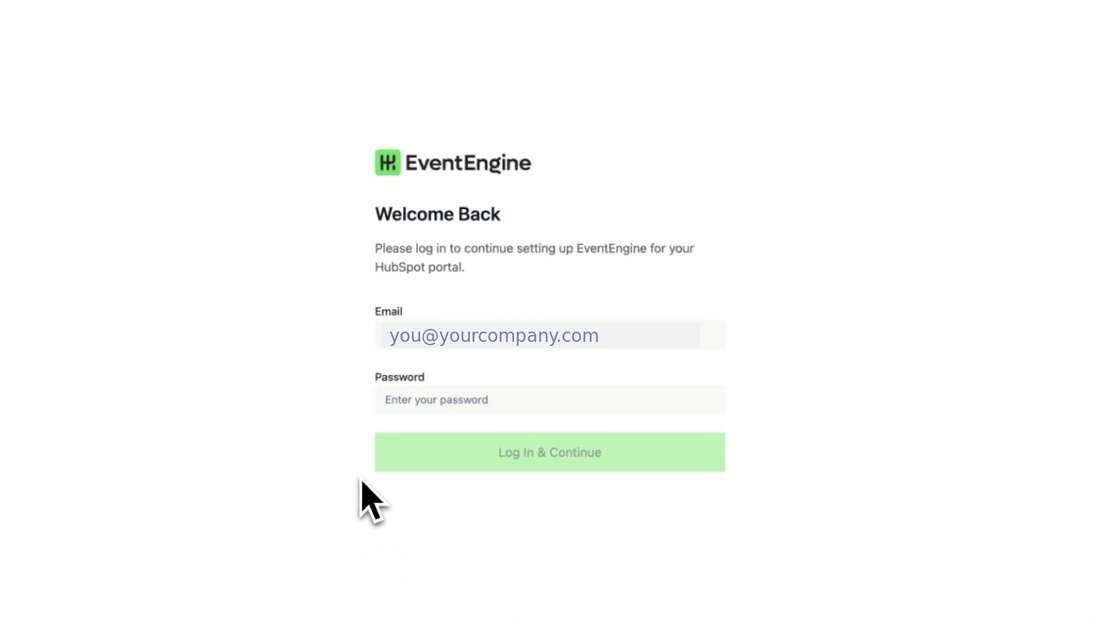
Log in to EventEngine. After connecting, you land on the EventEngine welcome screen. Enter your email and password to continue setting up EventEngine for your portal, then click Log In & Continue. First time here? Create your account at this step.
-
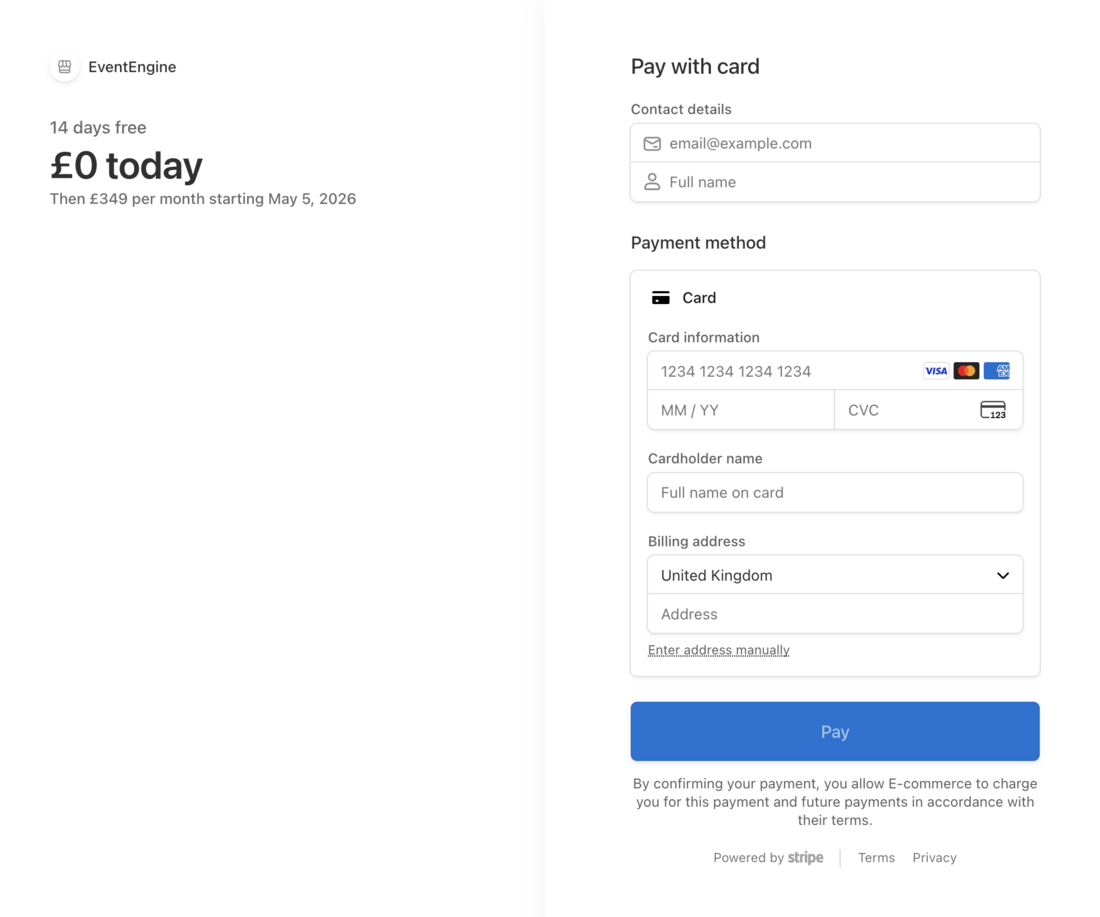
Start your free trial. Choose your plan. EventEngine begins with a 14 day free trial, then enter your billing details to continue. You will not be charged until the trial ends.
-
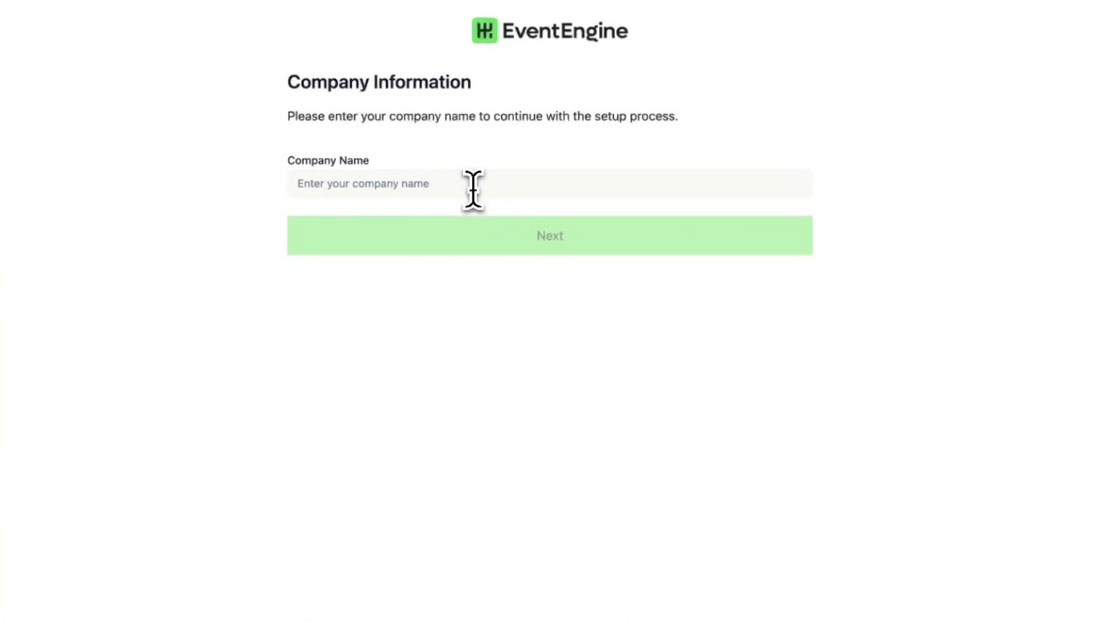
Add your company details. Fill in your company information. EventEngine uses these basics across your events.
-
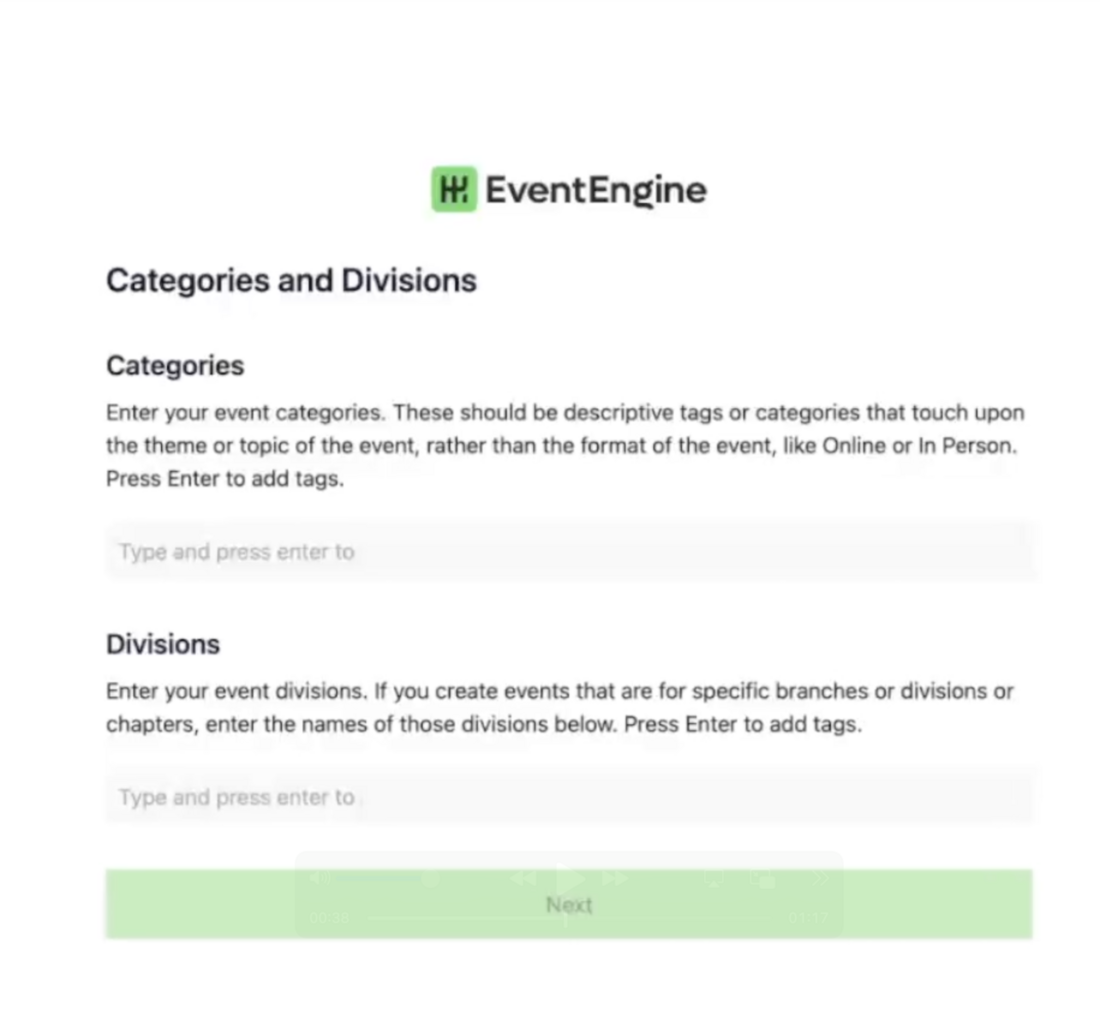
Set up categories and divisions. Add the categories and divisions, or groups, that you run events under. A couple to start with is fine. You can add more later, so do not overthink it here.
EventEngine now creates its modules inside your HubSpot portal. Leave the 'Creating EventEngine modules in HubSpot' screen to finish.
-
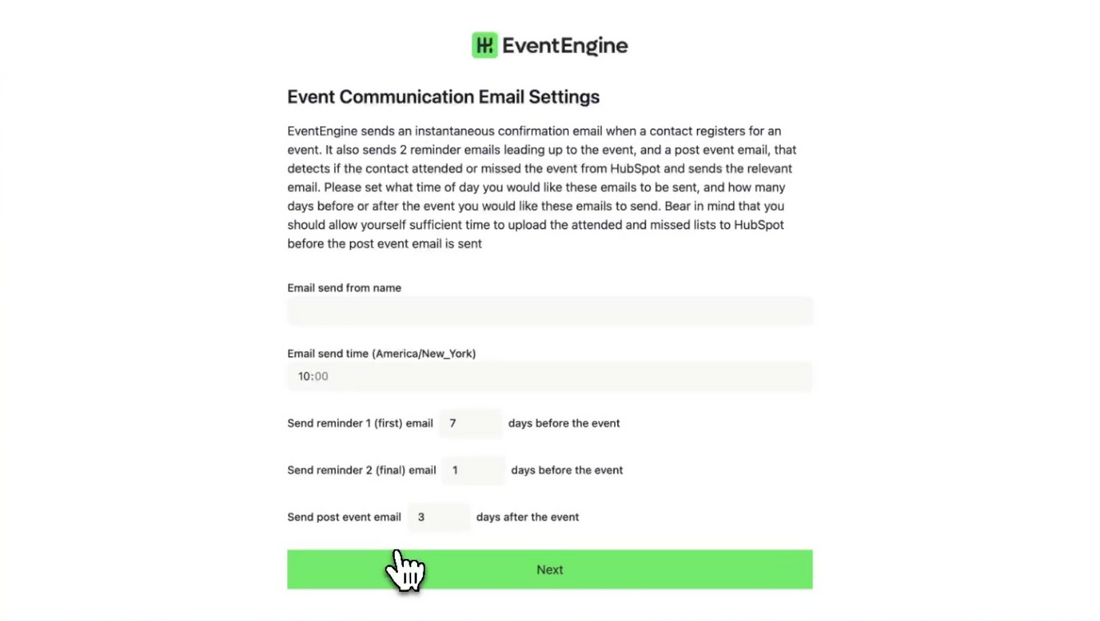
Set your event email settings. Set the sender name and details for your event confirmation and reminder emails, and choose your reminder timings. These are the emails your registrants receive.
-
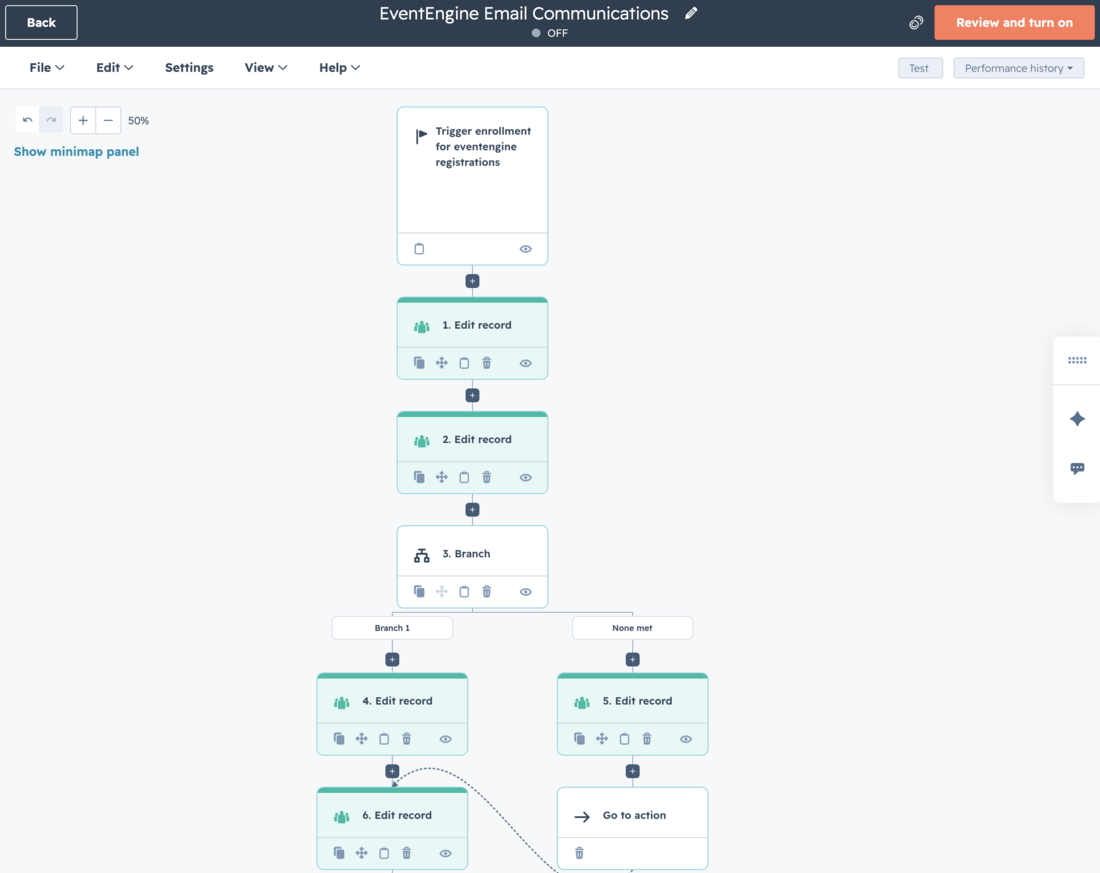
Review and publish the workflow. EventEngine sets up its core workflow. This is the single automation that handles registrations across all your events, so you never build a workflow per event. Click Get Started to review and publish it.
-
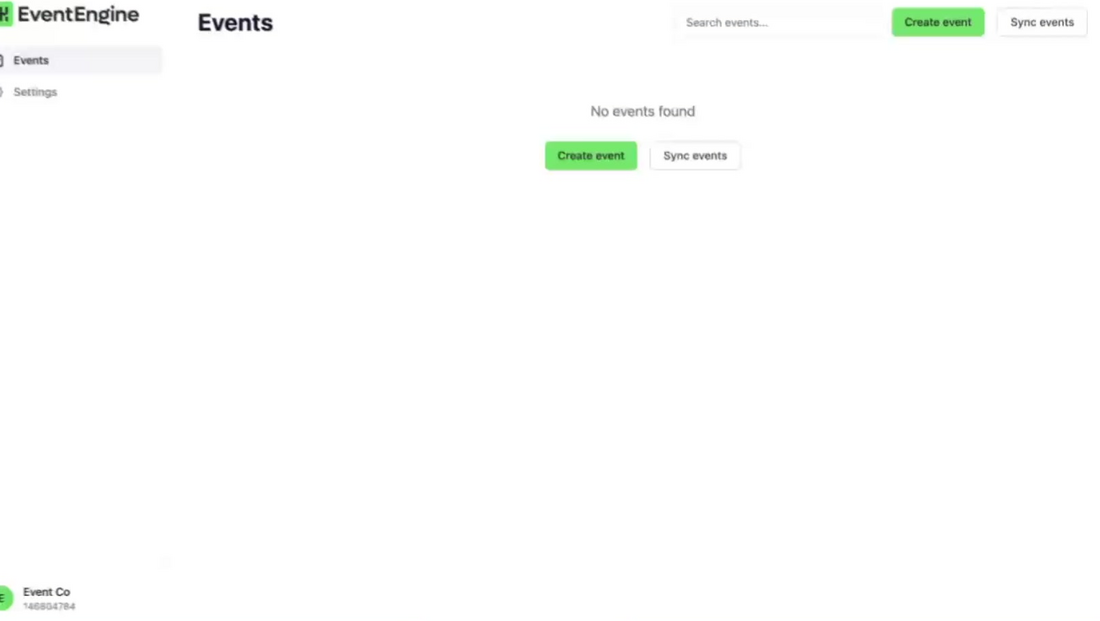
You are in. EventEngine finishes by creating your email workflows, then drops you on your Events dashboard. It is empty to begin with. From here you can create your first event.
How to check it worked
- Your EventEngine Events dashboard loads, with an empty events list ready for your first event.
- In HubSpot, the EventEngine assets now exist in your portal: the shared registration form, the core workflow, the HubDB tables, the CMS templates, and the EventEngine Registrations object.
If anything is missing, the install did not finish cleanly. Try the setup again, and if it still falls short, contact support@burrowsconsultancy.com.